





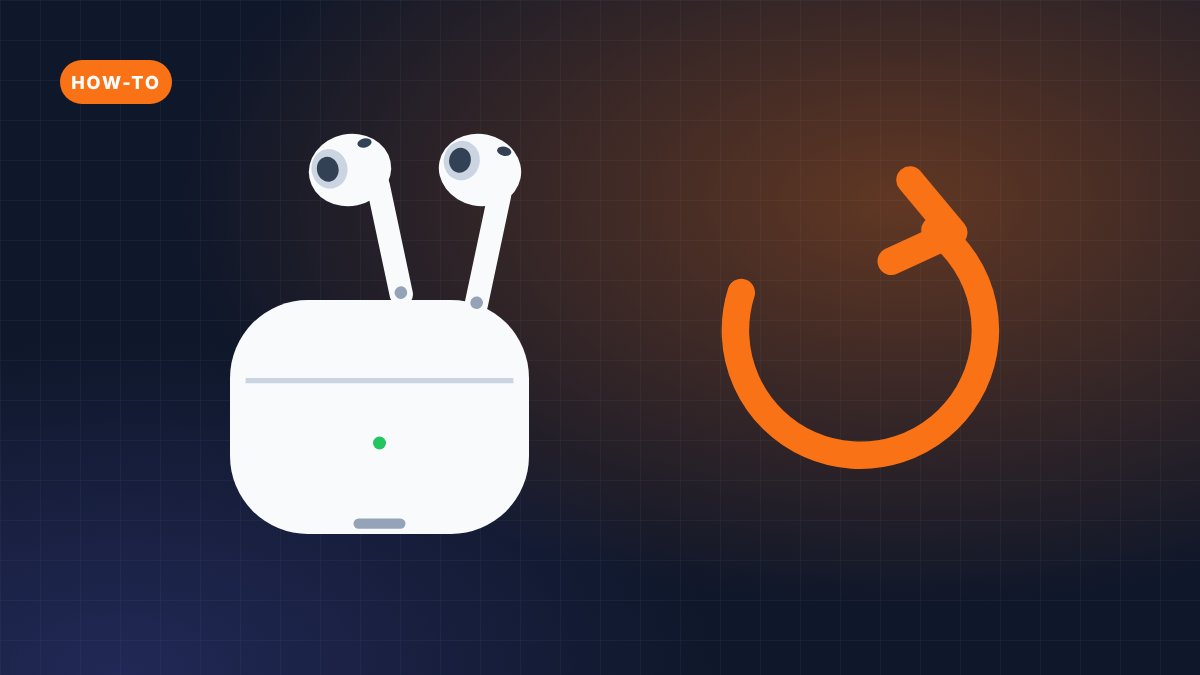
Most AirPods reset the same way: open the case, hold the setup button on the back for about 15 seconds and wait for the light to flash amber, then white. Newer models are different. AirPods 4, AirPods 5 and AirPods Pro 3 have no setup button, so you reset them with a sequence of double-taps on the front of the case.
Below is how to reset AirPods for every model, including AirPods Max, plus what to do when the light refuses to flash amber. The whole process takes less than a minute, and afterwards you pair the AirPods again like new.
Before you reset: forget the AirPods on your iPhone
Apple recommends this step first, so the old pairing doesn’t get in the way:
- Put both AirPods in the charging case, close the lid and wait 30 seconds.
- On your iPhone or iPad, open Settings → Bluetooth.
- If your AirPods are listed under My Devices, tap ⓘ next to them, then Forget This Device and confirm.
If your AirPods won’t charge, give them at least 15 minutes in the case on power before you try to reset AirPods. A reset needs a little battery to work.
Which reset method does your AirPods model use?
| Model | Reset method | Light sequence |
|---|---|---|
| AirPods (1st, 2nd, 3rd generation) | Hold the setup button on the back of the case ~15 seconds | Amber, then white |
| AirPods Pro (1st and 2nd generation) | Hold the setup button ~15 seconds | Amber, then white |
| AirPods 4 (all models) | Three double-taps on the front of the case | White, faster white, then amber and white |
| AirPods 5 (both models) | Three double-taps on the front of the case | White, faster white, then amber and white |
| AirPods Pro 3 | Three double-taps on the front of the case | White, faster white, then amber and white |
| AirPods Max | Hold the listening mode button and Digital Crown 15 seconds | Amber, then white |
Not sure which AirPods you have? The model number is in Settings → Bluetooth → ⓘ and printed under each earbud. Our AirPods serial number guide has the full model table.
How to reset AirPods 1, 2, 3 and AirPods Pro 1 and 2
This is how to reset AirPods Pro (1st and 2nd generation) and the older standard AirPods, which all have a small round setup button on the back of the case.
- Put the AirPods in the case and open the lid.
- Press and hold the setup button on the back of the case for about 15 seconds.
- Watch the status light. It flashes amber, then white. Release the button.
- Keep the lid open and hold the case next to your iPhone. Follow the setup card on screen.
That’s also how to factory reset AirPods Pro 2: there’s no separate “factory” mode, the reset above returns them to default settings.
How to reset AirPods 4, AirPods 5 and AirPods Pro 3
These models replaced the button with a touch-sensitive front. The trick is timing: tap firmly twice, like a double-click.
- Put the AirPods in the case and open the lid.
- While the status light is on, double-tap the front of the case.
- When the light flashes white, double-tap again.
- When the light flashes faster, double-tap a third time.
- Wait for the light to flash amber, then white.
- Hold the open case next to your iPhone and follow the on-screen steps to reconnect.
If the light stops or goes off between taps, close the lid, wait 20 seconds and start again. Tapping too softly or too slowly is the most common reason this reset fails.
How to reset AirPods Max
AirPods Max have no case button, so you use the two controls on the right ear cup. Charge them to at least 50% first.
- Press and hold the listening mode button and the Digital Crown at the same time.
- Keep holding for 15 seconds, until the LED flashes amber, then white.
- Reconnect the AirPods Max to your iPhone, iPad or Mac.
If you only hold the two buttons until the light flashes amber and let go, you’ve restarted the headphones rather than reset them. A restart is worth trying first when AirPods Max freeze or won’t connect.
Light won’t flash amber? Troubleshooting
- Charge first. Put the AirPods in the case and charge both for 15 minutes. A case with a dead battery can’t reset.
- Close, wait, retry. Close the lid, wait 20 seconds, open it and repeat the steps for your model.
- Clean the contacts. Lint in the case can stop an earbud from connecting to the case. See how to clean AirPods.
- Check both earbuds are seated. If one earbud isn’t charging, the reset may not complete. Our guide to AirPods not charging covers this.
- Update after the reset. Once paired again, check the firmware with our guide on how to update AirPods.
If none of the standard sequences work and the AirPods show odd behavior in Settings, it’s worth ruling out a counterfeit. Fakes often don’t follow Apple’s reset sequence at all. See how to tell if AirPods are fake.
What a factory reset does (and doesn’t do)
Knowing how to factory reset AirPods is useful, but it’s worth understanding what changes. A reset removes the pairing and returns custom settings, such as names, double-tap or press-and-hold actions and listening mode preferences, to their defaults. You’ll set those up again after pairing.
A reset does not remove the AirPods from the owner’s Find My. AirPods paired to an Apple Account stay linked to that account until the owner removes them. That matters if you’re selling or buying used AirPods: the seller should open Find My, select the AirPods and remove them before handing them over. If you’re buying second-hand, our guide to refurbished and used AirPods lists the other checks to make.
When to reset AirPods
A reset is the right fix when AirPods won’t connect, connect to only one earbud, show the wrong battery level or won’t charge. It’s also the last step before you sell or give AirPods away, and the first step after you buy used ones. For simple glitches, try putting both AirPods in the case, closing the lid for 30 seconds and reconnecting before you do a full reset.
FAQ
How do I reset my AirPods to a new owner?
First, the current owner should remove the AirPods from Find My on their iPhone. Then reset the AirPods using the steps for your model and pair them with the new owner’s iPhone. Without the first step, the AirPods stay linked to the previous Apple Account.
Can you factory reset AirPods that you found?
You can reset the pairing, but you can’t remove them from the owner’s Apple Account. Found AirPods remain in the owner’s Find My, and the owner may have put them in Lost Mode. The right thing to do is check for contact details when you connect them or hand them to the venue or police.
Does resetting AirPods delete Find My?
No. Resetting removes pairings and custom settings, but Find My is tied to the Apple Account. Only the owner can remove the AirPods from Find My in the Find My app or at iCloud.com.
Why won’t my AirPods reset?
The most common reasons are a flat battery, dirt on the charging contacts and wrong timing on the double-taps for AirPods 4, 5 and Pro 3. Charge for 15 minutes, clean the case, then retry slowly. If nothing works, contact Apple Support for service.